If your organization uses Confluence as your internal knowledge base but wants to surface that content in Salesforce Knowledge for your support teams or AI agents, you're in luck. Data Cloud makes it possible to automatically sync Confluence articles into Salesforce Knowledge without manual copying or complex integrations.
In this guide, I'll walk you through how to set up a real-time sync from Confluence to Salesforce Knowledge using Data Cloud's native connectors, data transforms, and a bit of Apex.
Why Sync Confluence to Salesforce Knowledge?
Many organizations maintain rich documentation in Confluence but need that same content accessible in Salesforce for:
- Support agents using Service Console
- Agentforce agents that need to reference company knowledge
- Customer-facing knowledge bases
- Unified search across all business systems
Rather than maintaining duplicate content in both systems, Data Cloud lets you create a single source of truth in Confluence that automatically flows into Salesforce.
Architecture Overview
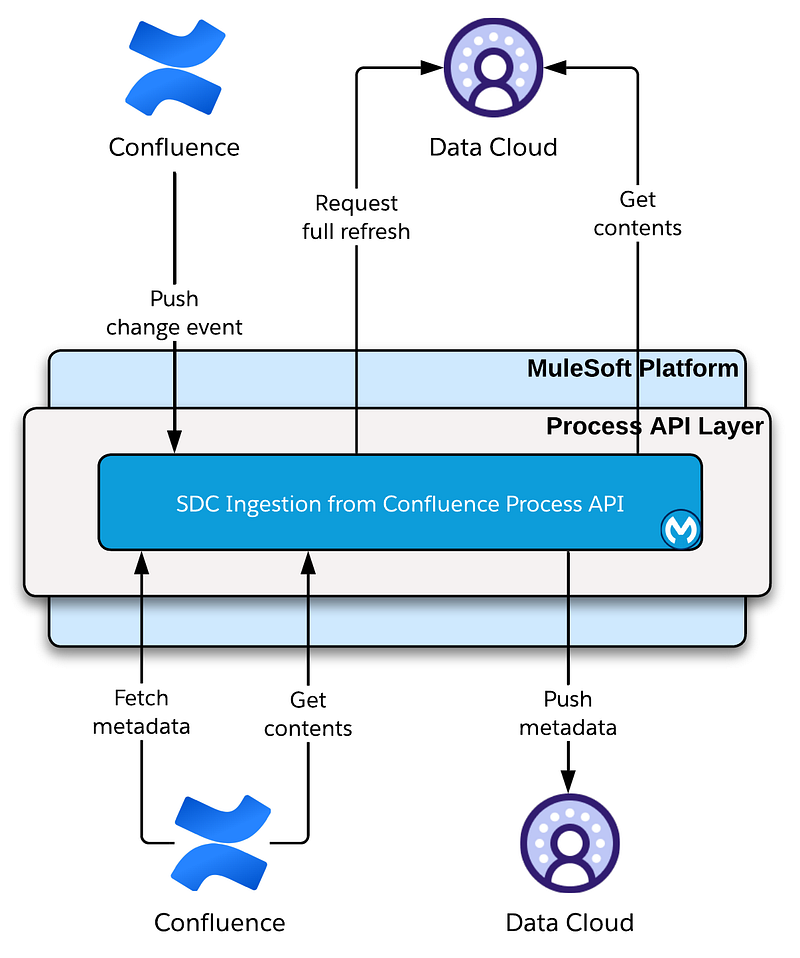
The solution uses four main components:
- Data Cloud Connectors — Native Confluence integration to stream article data
- Data Transform — Unified view combining pages and page content
- Data Cloud Triggered Flow — Fires when new articles are detected
- Apex Queueable — Creates or updates Knowledge articles in draft state
Configuration Steps
Step 1: Connect Confluence to Data Cloud
Data Cloud includes a pre-built Confluence connector that makes setup straightforward:
- Navigate to Data Cloud setup
- Select the Confluence connector
- Generate an API token from your Confluence instance
- Configure the connector with your Confluence URL and API token
Once connected, you'll have access to all your Confluence data in Data Cloud.
Step 2: Create Data Streams
For this use case, you'll need two data streams:
Pages Stream
- Contains metadata about each Confluence page
- Includes title, page ID, URL, and timestamps
Page Contents Stream
- Contains the actual body content of each page
- Includes HTML/storage format of the article
When configuring your streams:
- Select only the fields you need (keeps processing efficient)
- Use custom formula fields if you need to transform data
- Rename API names to match your naming conventions
- Setup an incremental schedule so only new or updated records sync (I recommend hourly)
Step 3: Create a Data Transform
Rather than working with two separate streams, create a Data Transform to unify them into a single table:
- Create a new Data Transform called “Knowledge Source Article”
- Pull in both data streams (Pages and Page Contents)
- Join them on ID and Page ID fields
- Select only the relevant fields: Page ID, Title, URL, Body content, and Timestamps
This transform runs on the same schedule as your streams (hourly in my setup), creating a clean, unified view of your Confluence articles.
Step 4: Build the Data Cloud Triggered Flow
Now create a Flow that fires whenever records are added or updated in your transform table:
- Create a new Data Cloud Triggered Flow
- Set the trigger to your Knowledge Source Article transform
- Configure it to fire on new or updated records
- Add an Apex action that calls your sync class
- Pass the page ID, title, and body content as parameters
The Flow acts as a trampoline, immediately queuing the work asynchronously so it doesn't block the Data Cloud pipeline.
Step 5: Apex Processing Logic
The Apex handles the actual Knowledge article creation or updates. Here's what it does:
For existing articles:
- Uses
KbManagement.PublishingService.editOnlineArticle()to create a new draft version - Updates the draft with the latest content from Confluence
- Leaves it in draft state for review
For new articles:
- Creates a new Knowledge__kav record
- Sets language to ‘en_US’
- Stores the Confluence Page ID for future matching
- Generates a URL-friendly slug
- Leaves in draft state for review
Step 6: Backfill Existing Articles
If you already have hundreds of Confluence articles, you'll want to backfill them rather than waiting for each to be updated. The solution includes a batchable Apex class that:
- Queries your Data Transform for all existing records
- Checks which ones don't yet exist in Knowledge
- Bulk inserts missing articles in batches
- Handles truncation for articles exceeding field limits
Run this once during initial setup to populate your Knowledge base.
Apex Components
Here's a high-level view of the key Apex components:
ConfluenceKnowledgeSync — Invocable Method
Called by the Flow, this class queues the actual processing asynchronously:
public without sharing class ConfluenceKnowledgeSync {
    public class Request {
        @InvocableVariable(required=true) public String pageId;
        @InvocableVariable(required=true) public String title;
        @InvocableVariable(required=true) public String bodyHtml;
    }
    public class Response {
        @InvocableVariable public String pageId;
        @InvocableVariable public String status;
        @InvocableVariable public String message;
    }

    @InvocableMethod(label='Sync Confluence Articles to Knowledge')
    public static List<Response> sync(List<Request> requests) {
        if (requests == null || requests.isEmpty()) return new List<Response>();

        System.enqueueJob(new ConfluenceKnowledgeProcessor(requests));

        List<Response> responses = new List<Response>();
        for (Request request : requests) {
            Response res = new Response();
            res.pageId = request.pageId;
            res.status = 'QUEUED';
            res.message = 'Enqueued for processing';
            responses.add(res);
        }
        return responses;
    }
}
ConfluenceKnowledgeProcessor — Queueable
The queueable that does the actual Knowledge article creation and updates:
public without sharing class ConfluenceKnowledgeProcessor implements Queueable {

    public class SyncRequest {
        public String pageId;
        public String title;
        public String bodyHtml;
    }

    private List<SyncRequest> requests;

    public ConfluenceKnowledgeProcessor(List<SyncRequest> requests) {
        this.requests = requests;
    }

    public void execute(QueueableContext context) {
        Logger.info('Processing ' + requests.size() + ' sync requests');

        for (SyncRequest request : requests) {
            try {
                processSync(request);
                Logger.info('Successfully synced pageId: ' + request.pageId);
            } catch (Exception e) {
                Logger.error('Failed to sync pageId: ' + request.pageId
                    + ' - ' + e.getMessage());
            }
        }
        Logger.saveLog();
    }

    private void processSync(SyncRequest request) {
        List<Knowledge__kav> existingArticles = [
            SELECT Id, KnowledgeArticleId
            FROM Knowledge__kav
            WHERE Confluence_Page_Id__c = :request.pageId
            AND IsLatestVersion = true
            LIMIT 1
        ];

        if (!existingArticles.isEmpty()) {
            // Create new draft version
            String draftArticleId = KbManagement.PublishingService
                .editOnlineArticle(existingArticles[0].KnowledgeArticleId, true);
            Knowledge__kav draftArticle = [
                SELECT Id FROM Knowledge__kav WHERE Id = :draftArticleId
            ];
            draftArticle.Title = String.isNotBlank(request.title)
                ? request.title : 'Confluence ' + request.pageId;
            draftArticle.Answer__c = request.bodyHtml;
            update draftArticle;
        } else {
            // Create new knowledge article
            Knowledge__kav article = new Knowledge__kav();
            article.Title = String.isNotBlank(request.title)
                ? request.title : 'Confluence ' + request.pageId;
            article.Language = 'en_US';
            article.Confluence_Page_Id__c = request.pageId;
            article.UrlName = request.pageId;
            article.Answer__c = request.bodyHtml;
            insert article;
        }
    }
}
InitialKnowledgeLoadQueueable — Backfill
One-time batch loader for existing Confluence articles:
public with sharing class InitialKnowledgeLoadQueueable implements Queueable {
    public class ArticleRecord {
        public String pageId;
        public String title;
        public String bodyHtml;
    }

    private final List<ArticleRecord> articlesToLoad;

    public InitialKnowledgeLoadQueueable(List<ArticleRecord> articlesToLoad) {
        this.articlesToLoad = articlesToLoad == null
            ? new List<ArticleRecord>() : articlesToLoad;
    }

    public void execute(QueueableContext context) {
        List<ConfluenceKnowledgeProcessor.SyncRequest> syncBatch =
            new List<ConfluenceKnowledgeProcessor.SyncRequest>();

        for (ArticleRecord article : articlesToLoad) {
            ConfluenceKnowledgeProcessor.SyncRequest request =
                new ConfluenceKnowledgeProcessor.SyncRequest();
            request.pageId = article.pageId;
            request.title = article.title;
            request.bodyHtml = article.bodyHtml;
            syncBatch.add(request);
        }

        if (!syncBatch.isEmpty()) {
            System.enqueueJob(new ConfluenceKnowledgeProcessor(syncBatch));
        }
    }
}
Seeing It In Action
Once configured, the workflow is simple: create or update a Confluence page, wait for your scheduled sync (hourly in my case), and the article appears in Salesforce Knowledge as a draft. Your Knowledge admins can then review and publish it.
Key Benefits
Single Source of Truth — Content teams manage articles in Confluence, their familiar tool
Automatic Syncing — Updates in Confluence flow to Salesforce without manual work
Draft State Protection — Articles arrive as drafts, giving admins a chance to review before publishing
Scalable — Handles hundreds or thousands of articles through batching
Native Integration — Uses Data Cloud's built-in Confluence connector (no middleware required)
Considerations
Scheduling — Hourly syncs work well for most use cases, but adjust based on how quickly you need changes reflected
HTML Formatting — Confluence HTML may need cleanup depending on your Knowledge template. Consider adding transformation logic if needed.
Field Limits — Salesforce Knowledge fields have length limits (131,072 characters for rich text). The backfill class includes truncation logic.
Permissions — The processor runs in without sharing mode to ensure articles can be created regardless of running user. Adjust based on your security requirements.
Draft vs. Publish — This solution creates drafts intentionally. If you want auto-publishing, modify the processor to call KbManagement.PublishingService.publishArticle() after creation.
Next Steps
Once you have Confluence syncing to Knowledge, consider:
- Connecting to Agentforce — Your AI agents can now reference this knowledge in responses
- Customer Community — Publish relevant articles to your community for customer self-service
- Einstein Search — Improved search results across your unified knowledge base
Wrapping Up
By combining Data Cloud's Confluence connector with Data Transforms and targeted Apex, you can create a seamless pipeline from your team's documentation tool into Salesforce Knowledge. No more copy-paste, no more outdated articles — just automated, reliable knowledge syncing.
If you have questions about this implementation or want to discuss specific use cases, feel free to reach out!
Connect with me on LinkedIn or subscribe to my YouTube channel for more Salesforce content.
Related Posts
Need Help With Data Cloud?
Let's discuss how we can integrate your systems with Salesforce Data Cloud.
Schedule a Free Call